All Playbooksby edouardtheginger

How to get a "Hey Claude" that takes over your iPhone
I say "Hey Claude" and talk for 10 seconds. My iPhone sends the recording to my Linux PC, the PC turns it into text with Whisper, and Claude Code does what I asked, on my iPhone, by itself. In the video it ordered Indian food for two on Uber Eats and stopped at checkout. Here is every step I followed, including what went wrong, written for someone who has never done anything like this.
What you need

- A spare PC
- An old laptop or desktop you no longer use, with Wi-Fi and Bluetooth. It becomes a Linux PC, and everything on it gets erased. Mine has an NVIDIA graphics card, which Whisper uses. I have not tried it on a PC without one.
- A USB stick
- 8 GB or more. It gets erased too.
- Your everyday computer
- Only to prepare the USB stick. Mac or Windows, both work.
- An iPhone
- A normal one, with the Shortcuts app. No jailbreak and no cable.
- A paid Claude plan
- Claude Code is the tool that does the work, and the free plan does not include it. My link below gives you a free week, while my guest passes last.
- One Wi-Fi network
- The PC and the iPhone have to be on the same home Wi-Fi.
- A couple of hours
- Phone Use took me 41 minutes once the PC ran Linux. Claude then took 35 minutes and 44 seconds to build Hey Claude: about 3 on the PC, about 30 making the Shortcut on the iPhone (slow taps, one mirroring drop) and 1 to test it. Making the Shortcut yourself is probably faster.
- Your passcode
- Keep it on. Claude only works on an unlocked iPhone, so you unlock it yourself before you ask (part 7).
 CLICK HERE
The seven parts
- Turn the spare PC into a Linux PC. Skip this if it already runs Linux.
- Let Claude install Phone Use on the PC. Phone Use is what lets Claude see and tap your iPhone.
- Pair the iPhone. The app, a QR code and one firewall fix.
- Connect the screen and the taps. Screen Mirroring, Bluetooth and two iPhone settings.
- Let Claude build the Hey Claude server. One prompt sets up Whisper and a small server on the PC.
- Make the Hey Claude Shortcut. Six actions in the Shortcuts app, by hand or by Claude.
- Teach the iPhone your voice, and use it. Say "Hey Claude" three times, then ask for anything.

Part 1: Turn the spare PC into a Linux PC
Phone Use needs a PC running Linux, a free system that replaces Windows. Any Linux works, Ubuntu for example. I recommend Omarchy, a Linux-based OS: one install gives you a complete, ready-to-use system with the developer tools already set up, Claude Code included, and it is light enough to run well on an old laptop. My PC was already running it, so I did not film this part: the steps below are for Omarchy and come from its manual.
THIS ERASES THE WHOLE PC
Installing Omarchy wipes the PC. Copy off anything you want to keep first. Only do this on a computer you do not need for anything else.
On your everyday computer

Step 1: Download Omarchy
Go to omarchy.org and download the file it offers. It is big and ends in .iso. (Using another Linux? Download its .iso instead: the next steps are the same.)
Step 2: Download balenaEtcher
It is a free app that copies that file onto a USB stick the right way. Dragging the file onto the stick does not work.
Step 3: Make the USB stick
Plug in the stick, open balenaEtcher, choose the Omarchy file, choose the stick, and click Flash. Wait until it says it is done.
On the spare PC
Step 1: Plug in the stick and a keyboard with a cable
A Bluetooth keyboard does not work during the installation.
Step 2: Turn off Secure Boot
Switch the PC on and keep pressing the key that opens its setup screen (often F2, F10, F12 or Delete; it depends on the brand, so search for your model and "BIOS key"). Find Secure Boot and turn it off. Omarchy cannot install with it on.
Step 3: Start from the stick
In the same setup screen, or with the boot menu key, choose the USB stick as the thing to start from.
Step 4: Answer the questions
Your name, a password, your Wi-Fi. Write the password down: you need it every time the PC starts, and again in part 3.
Step 5: Pick the drive and wait
Choose the PC's drive and confirm. The installation takes 2 to 10 minutes. Then the PC restarts as a Linux PC.
Stuck? The Omarchy manual has a help channel, and searching your PC model with "install Linux from USB" usually shows the exact keys.

Part 2: Let Claude install Phone Use
You don't install anything by hand. You type one sentence to Claude Code on the Linux PC, and it downloads Phone Use, installs it and connects itself to it.
Step 1: Open the terminal
The terminal is a window where you type instead of click. On Omarchy, hold the Super key (the Windows key) and press Enter.
Step 2: Start Claude Code
Type claude and press Enter. The first time, it opens a web page to log in to your Claude account. Log in and come back.
Step 3: Paste the first prompt below
Claude asks for permission before it runs things. Read what it asks and say yes.
Step 4: Wait for "installed and connected"
Mine took about a minute. Claude then tells you what is left to do on the phone.
Step 5: Paste the second prompt
A Phone Use window opens on the PC. It shows a QR code, which you scan in the next part.

Install Phone Use, github.com/lxe/phoneuse, on this machine and connect it to Claude Code.
Open Phone Use so I can pair my iPhone.
WHAT IT LOOKED LIKE FOR ME

How I did it
I stayed on my Mac. In the Claude desktop app I chose my Linux PC as the computer the session runs on, so I typed on the Mac and the work happened on the PC. That needs a remote connection (SSH) set up between the two. Typing straight on the Linux PC, as described above, gives the same result and is simpler.

Part 3: Pair the iPhone
Pairing tells the PC and the iPhone that they belong together. Check first that the iPhone is on the same Wi-Fi as the PC, not on mobile data or a guest network.
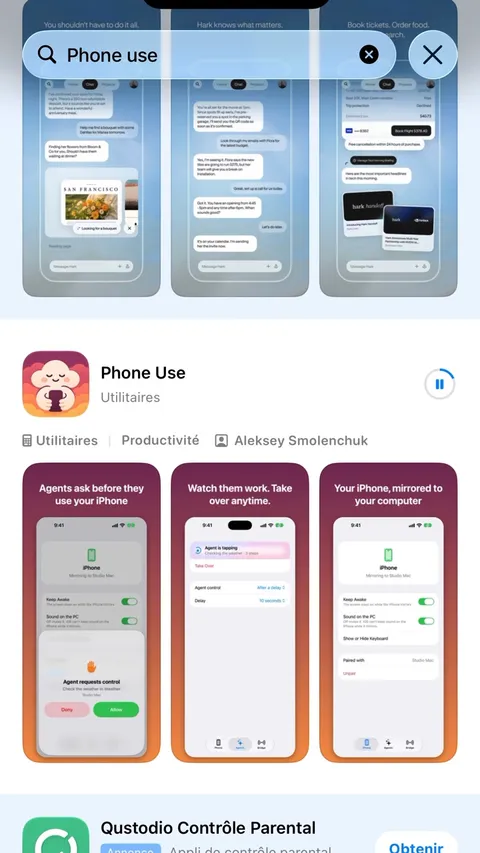
Step 1: Install the Phone Use app
On the iPhone, open the App Store and search for Phone Use. Take the one by Aleksey Smolenchuk, with the pink cloud holding a phone.
Step 2: Scan the QR code
Open the app and point the iPhone at the QR code in the Phone Use window on the PC.
Step 3: If the phone says it can't reach the PC
This happened to me. The PC's firewall, the part that blocks outside connections, was blocking the iPhone, and the app did not say so. Paste the prompt below.
Step 4: Type your PC password when asked
Claude prepares the fix but cannot type your password. It shows you where to type it. Type it, press Enter, then scan the QR code again.
On my phone it says it can't reach this computer. Check that Phone Use is running, and open what the firewall is blocking for it, only for my home network.
Three switches in the Phone Use window on the PC
- Use This PC's Bluetooth
- On. This is how the taps reach the iPhone. It asks for your PC password once. While it is on, the PC cannot use a Bluetooth keyboard or mouse of its own.
- Agent control
- Ask every time. The iPhone then asks you before Claude takes control. I would not choose Always.
- Keep Awake
- On. Claude cannot see or use the iPhone once its screen sleeps.

Part 4: Connect the screen and the taps
The PC sees the iPhone through Screen Mirroring and taps on it through Bluetooth, as if it were a mouse and a keyboard. Keep the iPhone unlocked while you do this.
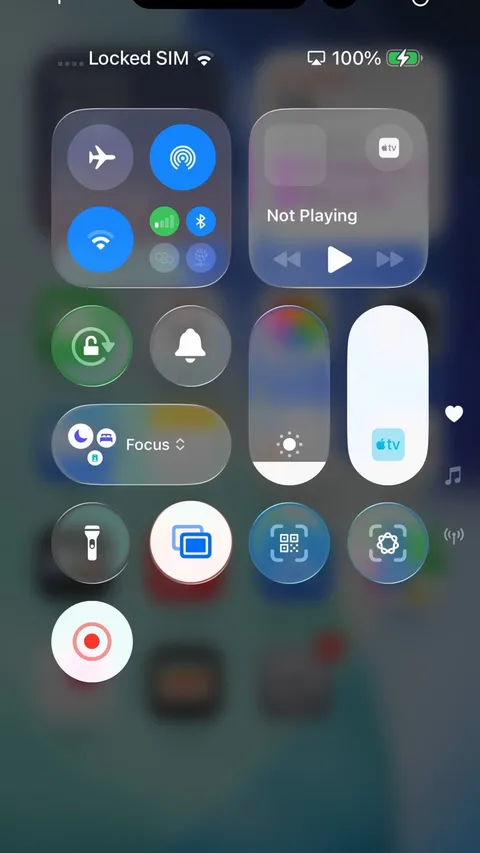
Step 1: Start Screen Mirroring
Swipe down from the top right corner, tap the two rectangles, and choose "Phone Use on" followed by your PC's name.
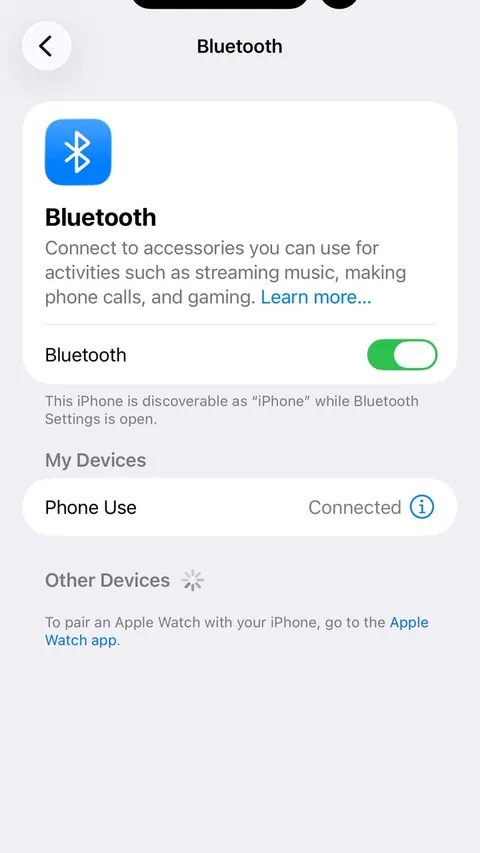
Step 2: Connect Bluetooth
Settings, Bluetooth, tap Phone Use and accept. It has to say Connected.
Step 3: Turn on AssistiveTouch
Settings, Accessibility, Touch, AssistiveTouch: on. On the same page, Dwell Control: off. A round button appears on screen. Without it Claude can type but not tap.
Step 4: Make the pointer orange
Settings, Accessibility, Pointer Control, Colour: Orange.
If Bluetooth will not stay connected

Mine connected and dropped several times. What fixed it: in Settings, Bluetooth, tap the (i) next to Phone Use and choose Forget This Device, pair again, then tap Phone Use once more to connect. Pairing can stop Screen Mirroring, so start it again after.
Check if my iPhone is paired, and if screen mirroring and Bluetooth are connected now.
Calibrate the pointer on my phone so swipes and scrolling work properly.
Run the second one before your first task. The first time I used Phone Use, I ran it too late, and Claude's swipes moved the screen by almost nothing. With the orange pointer the calibration worked first try, and scrolling was normal afterwards.

Part 5: Let Claude build the Hey Claude server
Hey Claude has two halves. On the iPhone, a Shortcut records you. On the PC, a small program (a server) receives the recording. Claude Code builds the PC half for you.
What happens when you say "Hey Claude"
- The iPhone records 10 seconds of your voice and sends it to the PC over your Wi-Fi.
- Whisper, a free speech-to-text model, turns it into text on the PC itself. On my graphics card that took under a second.
- The text goes to a new Claude Code run that is allowed to use Phone Use, so it can see and tap your iPhone.
- Claude's short reply shows up on the iPhone. If the reply is a question, the iPhone records again.
Step 1: Open Claude Code on the Linux PC and paste the prompt below
Check that the iPhone is mirroring. Say yes when Claude asks for permission, and type your PC password if it needs to open the firewall. Leave that window open afterwards: the server stops when you close it.
Step 2: Keep the address it gives you
It looks like http://[PC address]:[port]/[secret]/voice and goes into the Shortcut in part 6. The secret stops other people on your Wi-Fi from using it, so do not post it.
On this Linux PC, build me a "Hey Claude" voice assistant for my iPhone. Install faster-whisper with the large-v3-turbo model, on my graphics card if I have one. Write a small server in a folder called hey-claude that listens on my home network, with a random secret in its address. When my iPhone sends a voice recording to [address]/voice, the server turns it into text with Whisper and gives the text to Claude Code (claude -p), with Phone Use allowed so it can control my iPhone. Reply in one short sentence. If the task takes longer than 40 seconds, reply "I'm on it" and keep working. End a reply with "?" only when you need an answer from me. Never tap checkout, order or pay. If the firewall stops my iPhone from reaching the server, open that one port for my home network only. Start it, test it, and give me the address to put in my iPhone Shortcut.
Why my prompt was shorter
On camera I said only the sentence below, because my Claude had notes (a skill) saved from building it once earlier that day. Yours starts from zero, so the prompt above spells out what those notes said. I have not run that longer version myself. I said "Wispr", but I meant Whisper. Wispr Flow is a different app.
WHAT I SAID


Part 6: Make the Hey Claude Shortcut
A Shortcut is a small list of actions the iPhone runs in order. Claude built mine through Phone Use and it took about 30 minutes, because the mirrored screen lagged 10 to 20 seconds behind every tap. Doing it by hand is probably faster.
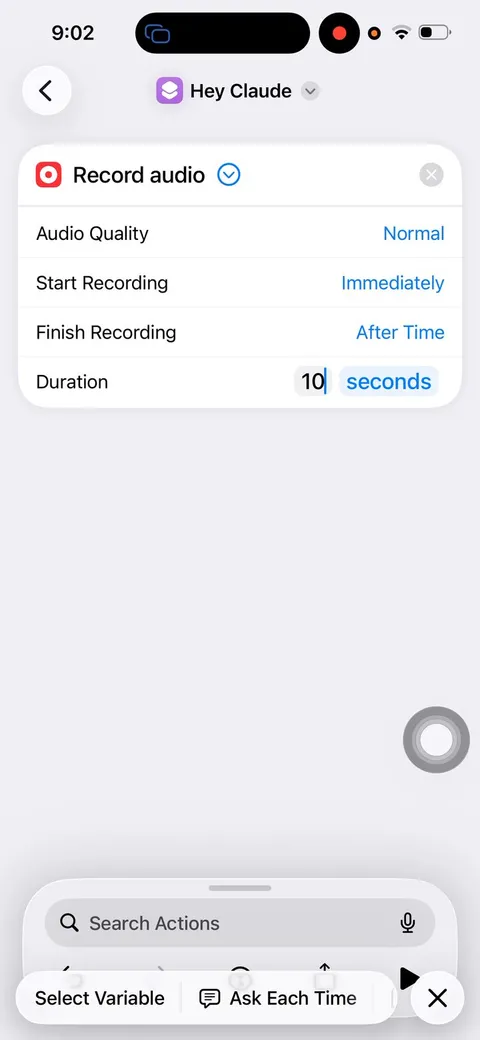
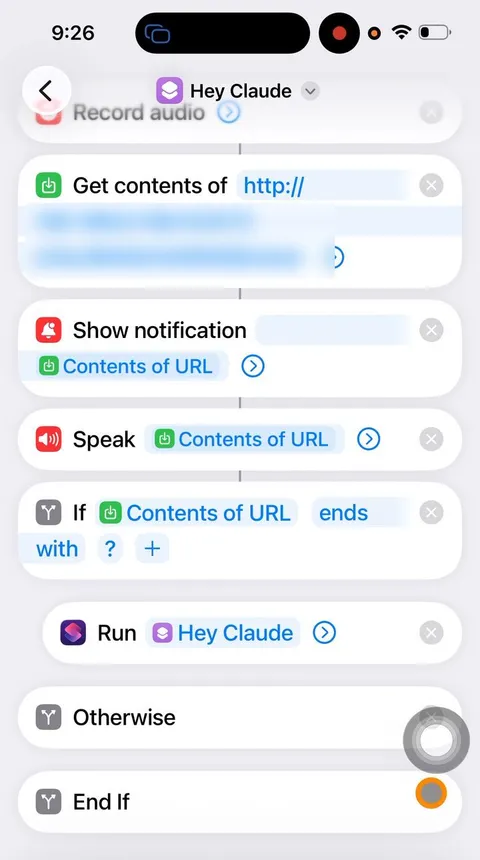
Step 1: Open Shortcuts and tap +
The Shortcuts app is already on your iPhone.
Step 2: Add Record Audio
Tap Search Actions, type Record Audio, tap it. Tap the arrow beside it: Start Recording Immediately, Finish Recording After Time, then 10 seconds (change minutes to seconds).
Step 3: Name it Hey Claude
Tap the name at the top, Rename, type Hey Claude.
Step 4: Add Get Contents of URL
Clear what is in its address and type the address from part 5. Tap the arrow: Method POST, Request Body File, File Recorded Audio.
Step 5: Add Show Notification
Clear its text, then Select Variable and pick Contents of URL. This is Claude's reply.
Step 6: Add Speak Text
It picks Contents of URL by itself. Tap the arrow and turn on Wait Until Finished.
Step 7: Add If
Tap its first box and pick Contents of URL, with the type set to Text. Set the condition to ends with and type ? in the last box.
Step 8: Add Run Shortcut, inside the If
Choose Hey Claude. It lands at the bottom, so move it between If and Otherwise. Claude did it by holding the action, Copy, holding the If line, Paste Below, then removing the original.
The order must be: Record audio, Get contents of URL, Show notification, Speak, If (Run Hey Claude), Otherwise, End If. Tap the Hey Claude tile once to test it. When the iPhone asks whether Hey Claude may send a media item to your PC, tap Always Allow.
Now create the Hey Claude Shortcut on my iPhone yourself, using Phone Use.

Part 7: Teach the iPhone "Hey Claude"
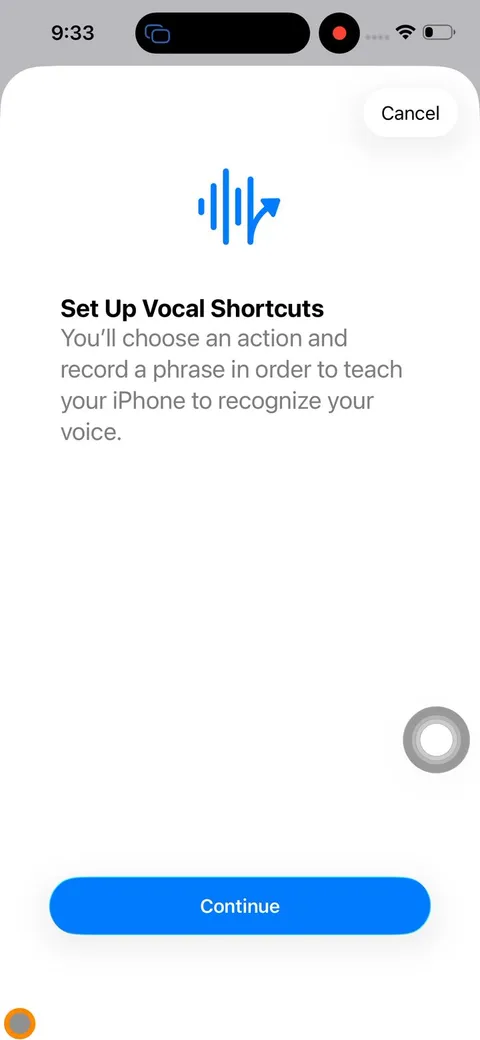
Vocal Shortcuts is an iPhone setting that runs a Shortcut when you say a phrase you choose. It needs your own voice, so Claude cannot do this part.
Step 1: Open the setting
Settings, Accessibility, then under Speech, Vocal Shortcuts. Tap Set Up Vocal Shortcuts and Continue.
Step 2: Pick the Shortcut
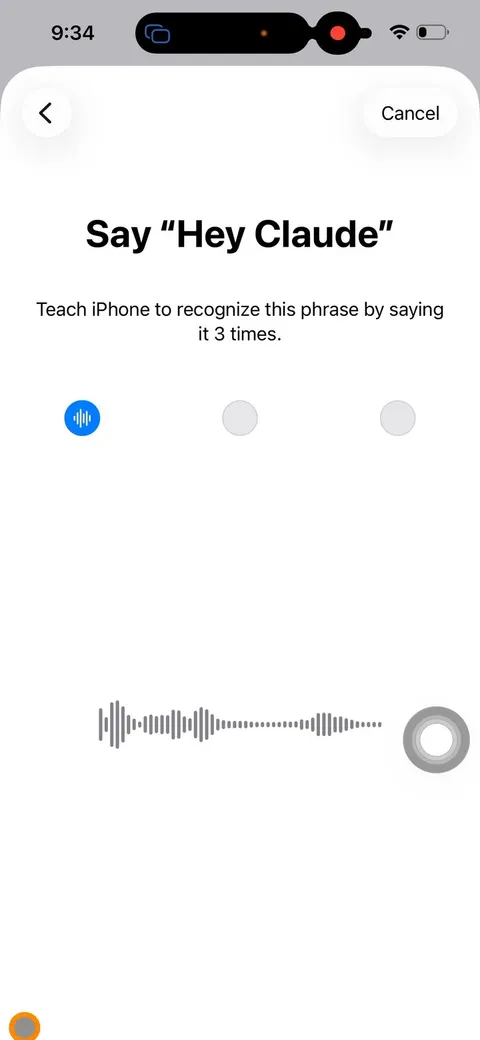
Choose Shortcuts, then Hey Claude. Type Hey Claude as the phrase.
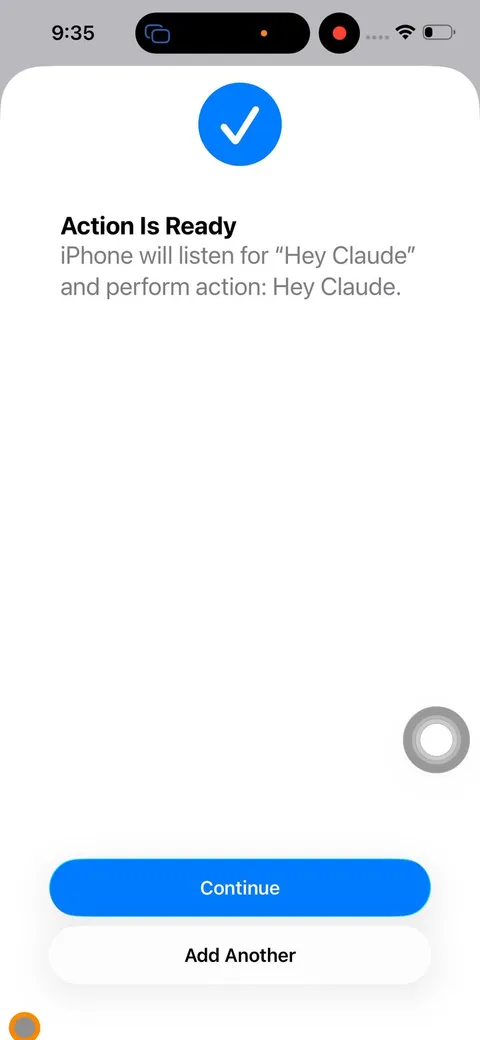
Step 3: Say "Hey Claude" three times
Until it says Action Is Ready.
Use it
Step 1: Before you start
iPhone unlocked and mirroring to the PC, Bluetooth connected, PC on, the Claude Code window from part 5 open.
Step 2: Say "Hey Claude", then your request
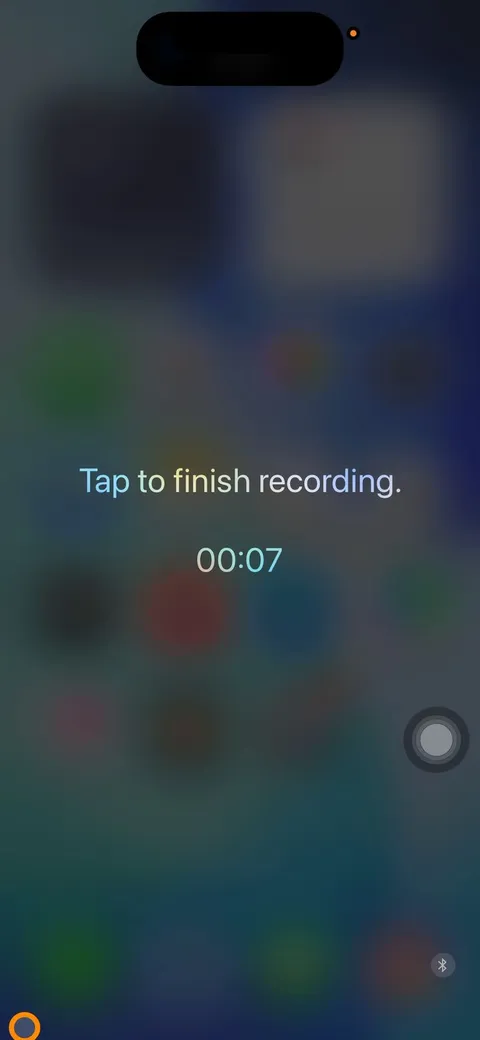
A screen saying "Tap to finish recording" counts down from 10. You don't need to tap: it stops by itself. Say which app, and where Claude has to stop.
Step 3: Let it work
If Phone Use is set to ask every time, the iPhone asks before Claude takes control: tap Allow. For a long task Claude first replies "I'm on it", then keeps going on the screen.
Hey Claude. [What you want done] on [the app]. Stop at [where it must stop, for example: checkout].
One of mine, as Whisper heard it: Can you please order Indian on Uber Eats for me and my girlfriend?
Unlock the phone first, and keep your passcode
Claude cannot get past your lock screen, because Phone Use refuses to type a passcode. Unlock the phone (Face ID is fine) before you say "Hey Claude". In the last take of my video the phone was locked and put away, but only because I had turned my passcode off. Please don't copy that: anyone who picks up a phone with no passcode gets into everything on it, and turning it off also turns off Face ID.

The result
From "Hey Claude" to a full basket took 97 seconds, with nobody touching the phone or the PC.
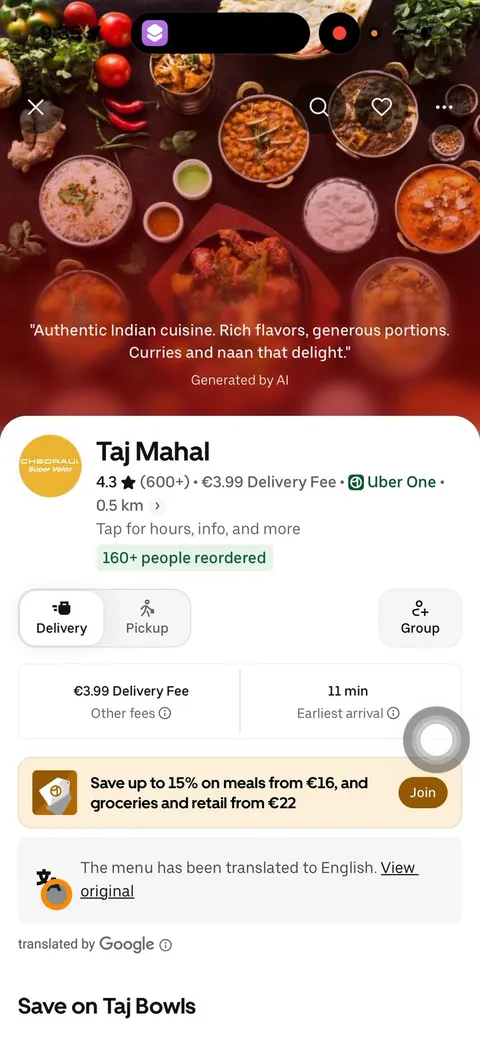
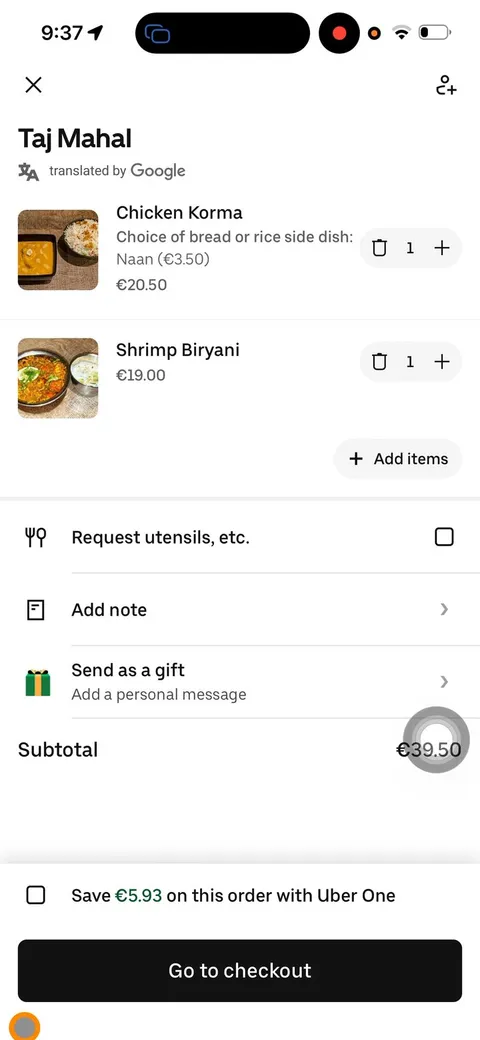
Claude opened Uber Eats, tapped Indian, chose Taj Mahal and added a Chicken Korma with naan and a Shrimp Biryani, €39.50 in all. It stopped on the basket, before Go to checkout, and left paying to me.
What went wrong for me, and the fix
- "Hey Claude" does nothing
- The phrase was heard but nothing recorded. I deleted the Vocal Shortcut and set it up again, and it worked.
- The mirror lags
- Claude saw each tap 10 to 20 seconds late. Stopping and restarting Screen Mirroring brought it down to about 5.
- Mirroring stops
- It dropped once in the middle of the build. Start it again from Control Center and tell Claude.
- Uber Eats asks about tracking
- Answer that prompt once yourself. Claude leaves permission prompts to you.
- The phone was locked
- Claude stopped at the passcode screen and nothing was typed. Unlock the phone and ask again.
What to know
- The voice is on the PC
- While the iPhone mirrors its screen, it sends all its sound to the PC, so the spoken reply plays there. The reply also shows on the iPhone as a notification. We tried forcing the sound onto the iPhone, and mirroring stopped.
- 10 seconds, every time
- The recording cannot tell when you stop talking. Short requests wait out the 10 seconds.
- Home only
- It works on your home Wi-Fi, with the PC on, the iPhone unlocked and the Claude Code window open.
- Money
- Always tell it where to stop, and pay yourself.