All Playbooksby edouardtheginger

How to let Claude control your iPhone with Phone Use
I saw a reel saying Claude can now use an iPhone by itself, so I tested it. I asked Claude to put sushi for two in my Uber Eats basket, and it did, on my real iPhone, with no cable. This is every step I followed, including the things that went wrong, written for someone who has never done anything like this.
What you need

- A spare PC
- An old laptop or desktop you no longer use, with Wi-Fi and Bluetooth. It becomes a Linux PC, and everything on it gets erased. Use a PC, not a Mac: on a Mac, Phone Use needs an extra part.
- A USB stick
- 8 GB or more. It gets erased too.
- Your everyday computer
- Only to prepare the USB stick. Mac or Windows, both work.
- An iPhone
- A normal one. No jailbreak and no cable.
- A paid Claude plan
- Claude Code is the tool that does the work, and the free plan does not include it. My link below gives you a free week, while my guest passes last.
- One Wi-Fi network
- The PC and the iPhone have to be on the same home Wi-Fi.
- About an hour
- My setup took 41 minutes once the PC was a Linux PC. After that, each task is one sentence.
 CLICK HERE
The five parts
- Turn the spare PC into a Linux PC. Skip this if it already runs Linux.
- Let Claude install Phone Use on the PC. One sentence, Claude does the rest.
- Pair the iPhone. The app, a QR code and one firewall fix.
- Connect the screen and the taps. Screen Mirroring, Bluetooth and two iPhone settings.
- Run it. Ask for what you want, tap Allow, and watch.

Part 1: Turn the spare PC into a Linux PC
Phone Use works best on Linux, a free system that replaces Windows. I use a version called Omarchy, and it already has Claude Code inside. My PC was already running it, so I did not film this part: these steps come from the Omarchy manual.
THIS ERASES THE WHOLE PC
Installing Omarchy wipes the PC. Copy off anything you want to keep first. Only do this on a computer you do not need for anything else.
On your everyday computer

Step 1: Download Omarchy
Go to omarchy.org and download the file it offers. It is big and ends in .iso.
Step 2: Download balenaEtcher
It is a free app that copies that file onto a USB stick the right way. Dragging the file onto the stick does not work.
Step 3: Make the USB stick
Plug in the stick, open balenaEtcher, choose the Omarchy file, choose the stick, and click Flash. Wait until it says it is done.
On the spare PC
Step 1: Plug in the stick and a keyboard with a cable
A Bluetooth keyboard does not work during the installation.
Step 2: Turn off Secure Boot
Switch the PC on and keep pressing the key that opens its setup screen (often F2, F10, F12 or Delete; it depends on the brand, so search for your model and "BIOS key"). Find Secure Boot and turn it off. Omarchy cannot install with it on.
Step 3: Start from the stick
In the same setup screen, or with the boot menu key, choose the USB stick as the thing to start from.
Step 4: Answer the questions
Your name, a password, your Wi-Fi. Write the password down: you need it every time the PC starts, and again in part 3.
Step 5: Pick the drive and wait
Choose the PC's drive and confirm. The installation takes 2 to 10 minutes. Then the PC restarts as a Linux PC.
Stuck? The Omarchy manual has a help channel, and searching your PC model with "install Linux from USB" usually shows the exact keys.

Part 2: Let Claude install Phone Use
You don't install anything by hand. You type one sentence to Claude Code on the Linux PC, and it downloads Phone Use, installs it and connects itself to it.
Step 1: Open the terminal
The terminal is a window where you type instead of click. On Omarchy, hold the Super key (the Windows key) and press Enter.
Step 2: Start Claude Code
Type claude and press Enter. The first time, it opens a web page to log in to your Claude account. Log in and come back.
Step 3: Paste the first prompt below
Claude asks for permission before it runs things. Read what it asks and say yes.
Step 4: Wait for "installed and connected"
Mine took about a minute. Claude then tells you what is left to do on the phone.
Step 5: Paste the second prompt
A Phone Use window opens on the PC. It shows a QR code, which you scan in the next part.

Install Phone Use, github.com/lxe/phoneuse, on this machine and connect it to Claude Code.
Open Phone Use so I can pair my iPhone.
WHAT IT LOOKED LIKE FOR ME

How I did it
I stayed on my Mac. In the Claude desktop app I chose my Linux PC as the computer the session runs on, so I typed on the Mac and the work happened on the PC. That needs a remote connection (SSH) set up between the two. Typing straight on the Linux PC, as described above, gives the same result and is simpler.

Part 3: Pair the iPhone
Pairing tells the PC and the iPhone that they belong together. Check first that the iPhone is on the same Wi-Fi as the PC, not on mobile data or a guest network.
Step 1: Install the Phone Use app
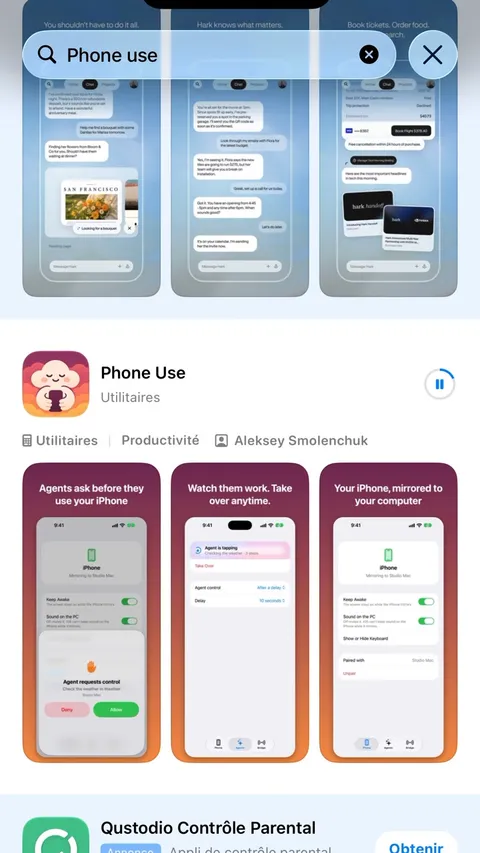
On the iPhone, open the App Store and search for Phone Use. Take the one by Aleksey Smolenchuk, with the pink cloud holding a phone.
Step 2: Scan the QR code
Open the app and point the iPhone at the QR code in the Phone Use window on the PC.
Step 3: If the phone says it can't reach the PC
This happened to me. The PC's firewall, the part that blocks outside connections, was blocking the iPhone, and the app did not say so. Paste the prompt below.
Step 4: Type your PC password when asked
Claude prepares the fix but cannot type your password. It shows you where to type it. Type it, press Enter, then scan the QR code again.
On my phone it says it can't reach this computer. Check that Phone Use is running, and open what the firewall is blocking for it, only for my home network.
Three switches in the Phone Use window on the PC
- Use This PC's Bluetooth
- On. This is how the taps reach the iPhone. It asks for your PC password once. While it is on, the PC cannot use a Bluetooth keyboard or mouse of its own.
- Agent control
- Ask every time. The iPhone then asks you before Claude takes control. I would not choose Always.
- Keep Awake
- On. Claude cannot see or use the iPhone once its screen sleeps.

Part 4: Connect the screen and the taps
The PC sees the iPhone through Screen Mirroring and taps on it through Bluetooth, as if it were a mouse and a keyboard. Keep the iPhone unlocked while you do this.
Step 1: Start Screen Mirroring
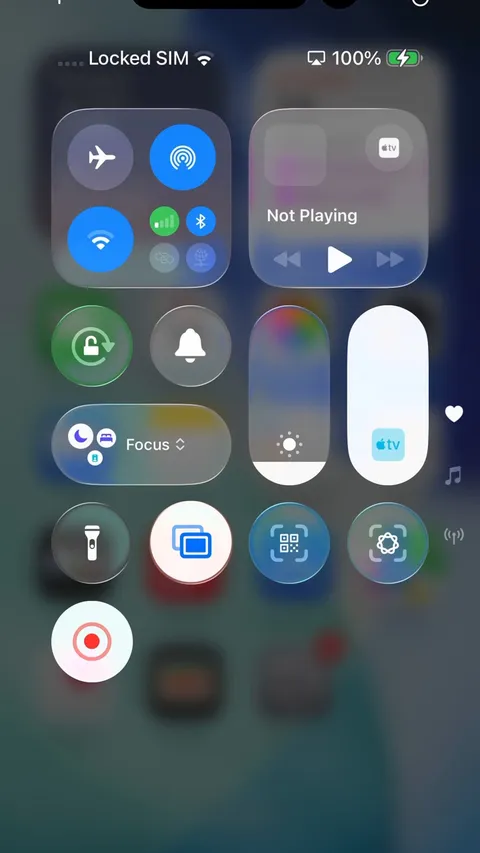
Swipe down from the top right corner, tap the two rectangles, and choose "Phone Use on" followed by your PC's name.
Step 2: Connect Bluetooth
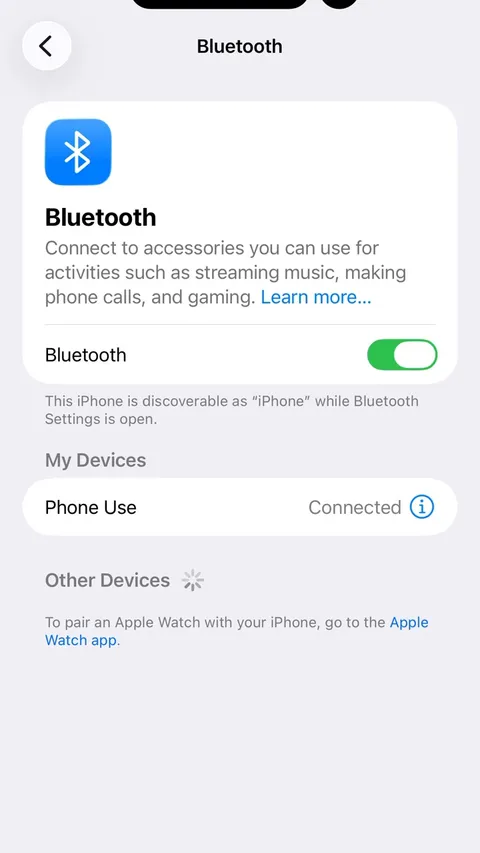
Settings, Bluetooth, tap Phone Use and accept. It has to say Connected.
Step 3: Turn on AssistiveTouch
Settings, Accessibility, Touch, AssistiveTouch: on. On the same page, Dwell Control: off. A round button appears on screen. Without it Claude can type but not tap.
Step 4: Make the pointer orange
Settings, Accessibility, Pointer Control, Colour: Orange.
If Bluetooth will not stay connected

Mine connected and dropped several times. What fixed it: in Settings, Bluetooth, tap the (i) next to Phone Use and choose Forget This Device, pair again, then tap Phone Use once more to connect. Pairing can stop Screen Mirroring, so start it again after.
Check if my iPhone is paired, and if screen mirroring and Bluetooth are connected now.
Calibrate the pointer on my phone so swipes and scrolling work properly.
I ran the second one only after my sushi test, and I should have done it before. Without it Claude's swipes moved the screen by almost nothing. With the orange pointer the calibration worked first try, and scrolling was normal afterwards.

Part 5: Run it
Now ask Claude Code for what you want, the way you would ask a person. Say which app, and say where it has to stop.
Using my phone, [what you want done] on [the app]. [Where it must stop, for example: add everything to the basket, but don't click on checkout]. I will handle that part myself.
Mine: I'm really hungry tonight. Can you please order sushi on Uber Eats for me and my girlfriend using my phone? Add everything to the basket, but don't click on checkout. I will handle that part myself.
Step 1: Send the prompt, then tap Allow
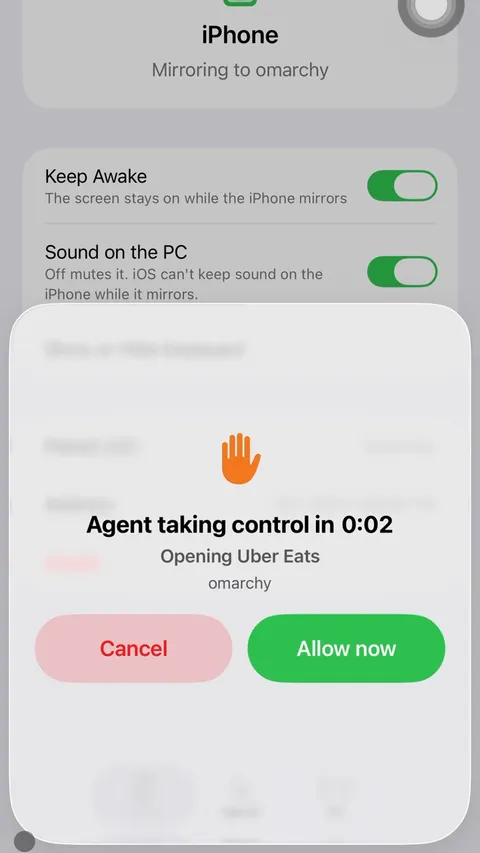
The iPhone shows that an agent wants control, and what for. Tap Allow, or Cancel to stop it.
Step 2: Leave the phone alone
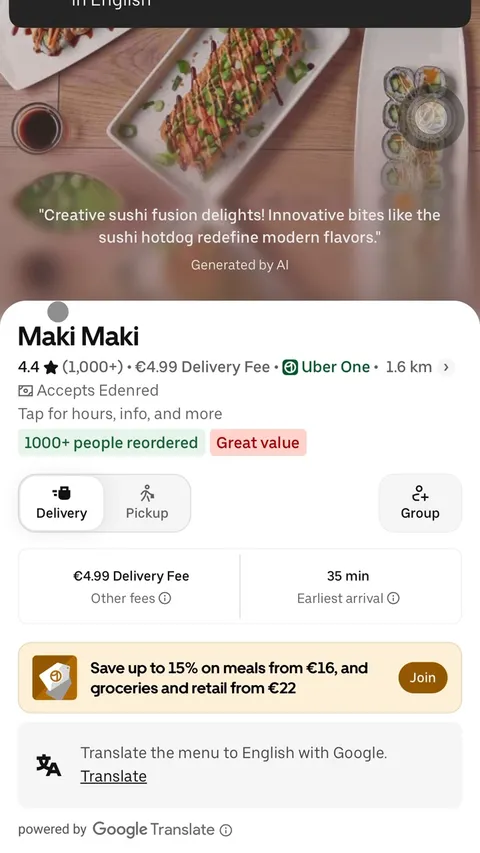
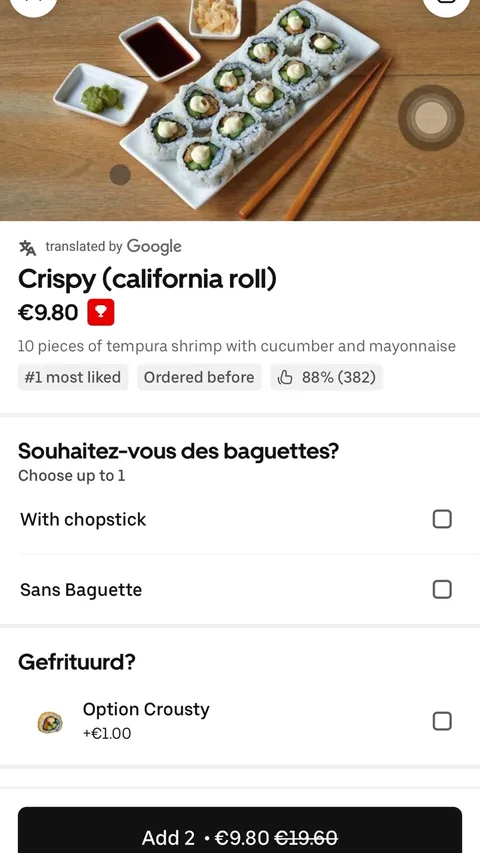
Claude opens the app, reads the screen and taps by itself. Mine opened Uber Eats, tapped Sushi, picked a restaurant, translated the menu and added three dishes to the basket.
Step 3: Check the basket and pay yourself
It stopped before checkout, as I asked, and told me what it chose and why. Look at it before you order.
Write your own
- Name the app
- Uber Eats, the App Store, Safari. Claude finds it on the phone and opens it.
- Say where it stops
- In the basket, before sending, before paying. It respected that on my run.
- One task at a time
- One clear task per message.

The result
What I got from one sentence, with the phone lying on the desk and nothing plugged into it.
My verdict: REAL
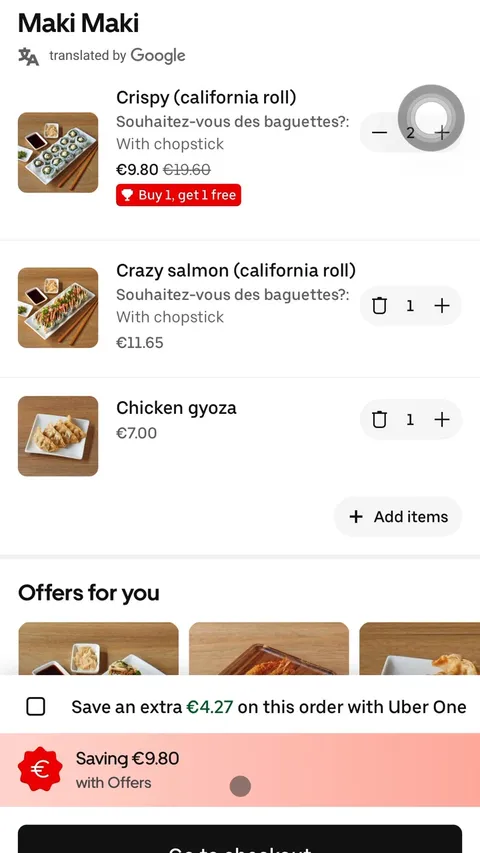
It works, on a normal iPhone, with nothing plugged in. Two crispy rolls, a salmon roll and chicken gyoza were in my Uber Eats basket for €28.45, with a buy 1, get 1 free offer on the crispy rolls. It stopped before checkout.
HOW LONG IT TOOK
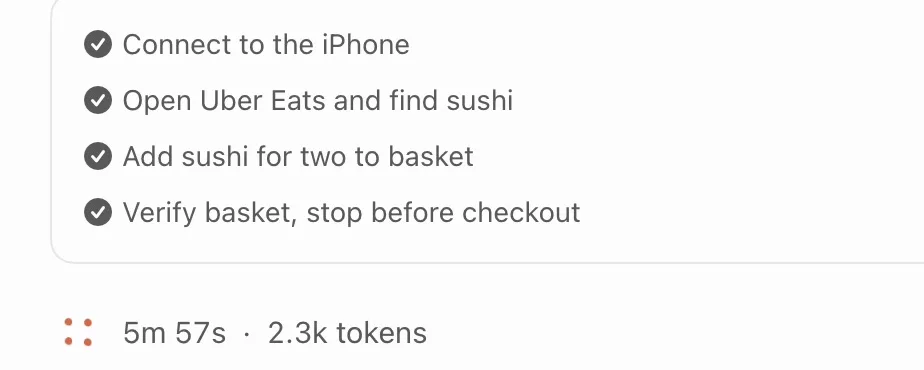
It is slow: 5 minutes 57 seconds to fill a basket. I had not calibrated the pointer yet, so its swipes fell very short and it only looked at the first few restaurants.
What went wrong for me, and the fix
- Phone can't reach the PC
- The PC's firewall. The prompt in part 3 fixes it.
- Bluetooth keeps dropping
- Forget the device on the iPhone, pair again, tap Phone Use once more.
- Claude types but can't tap
- AssistiveTouch was off. Turn it on, Dwell Control off.
- Swipes barely move
- Orange pointer, then the calibration prompt in part 4.
- A physical button
- Claude cannot press the side button. To install an app, you double-click it yourself.
What to watch out for
- Money
- Always tell it to stop before checkout or payment, and do that step yourself.
- Your accounts
- It acts as you in every app it opens. Don't ask it to post or send messages unless you are fine with the result.
- Alpha software
- Phone Use is new and its author says so. Expect bugs like the ones above.
This playbook comes from Real or BS, my series where I test what viral AI videos claim. Tag me in the comments of a video you want me to test next.